How to count inventory with your phone, without a barcode scanner.
Count stock by product, handle cases and loose units, and export a record you can check. A manual stocktake setup for small shops and stockrooms.
To count inventory without a barcode scanner, work through one shelf at a time, keep a separate tally for each product and variant, and compare the finished quantities with your stock records. A counter app on your phone can hold the numbers while you count. You still identify the products and decide which stock belongs in the count.
The part that usually goes wrong is the interruption. Someone asks for a price, you put a box down, and the number you were holding in your head disappears. A named counter gives you somewhere to come back to. A marked shelf tells you where to resume.
This guide uses Tally Counter, the app behind this blog. The setup works for a small shop, a market stall or a stockroom spot count where one person counts and transfers the results to a spreadsheet.
Prepare one area before you start
Pick a shelf or a clearly marked section. Separate products by size, colour or other variant: a blue medium shirt and a blue large shirt need their own counts. Include backroom stock if it belongs in the same count, but label the locations so you do not count it twice.
Choose a quiet time and pause sales, deliveries and transfers for that area where possible. If stock must move, record the product, quantity and time separately, then account for those movements before comparing the result. A tally does not know that someone sold two items while you were counting.
Keep your expected quantities on a separate sheet. Start the physical count at zero, even if the spreadsheet says 40. Adding what you find to the expected quantity would count the stock twice.
For a broader overview of planning and checking a stocktake, Lightspeed’s physical inventory guide covers full counts and smaller cycle counts.
Give each product a name you can check later
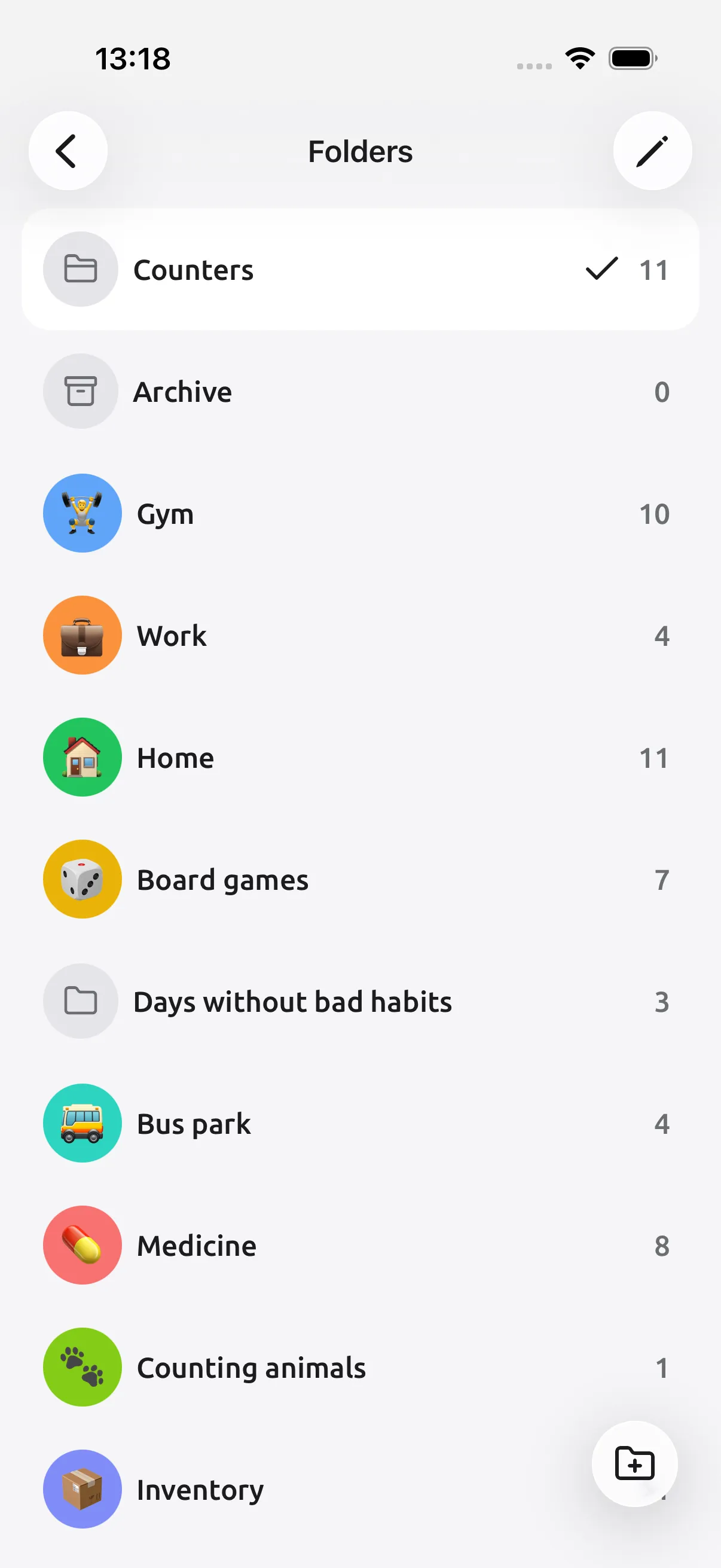
Create a folder for the session, such as Stocktake · 5 Oct. Name each counter with the product or SKU, variant and location: Mug · blue · shelf A. A SKU is the identifier you use for a particular product variant; use the same one as your spreadsheet if you have it.
Use a step of 1 for individual items, an initial value of 0, and leave the goal off. You want the quantity you find, including any unexpected extra stock. A goal that stops or resets at the expected quantity would hide a discrepancy.
Tally Counter already lets you keep work in separate folders:
Three cases of 12 and five loose items
Suppose you find three full cases of blue mugs, with 12 mugs in each, plus five loose mugs. Confirm the contents of each case; an opened or partly filled case needs its own count.
The free version can handle this with two counters. Both display individual mugs, so their values can be added directly:
| Counter | Step | What you tap | Result |
|---|---|---|---|
| Blue mugs · cases · shelf A | 12 | Once for each of 3 full cases | 36 |
| Blue mugs · loose · shelf A | 1 | Once for each of 5 loose mugs | 5 |
36 + 5 = 41 mugs. The cases counter reads 36, not 3, because each tap adds 12. Do not multiply it again in the spreadsheet.
Keep the two counters together and combine their values for that product when you export. A folder’s running sum is useful when it contains only counts for the same product in the same unit. A folder containing mugs, shirts and kilograms of yarn has no useful stock total; keep those product totals separate.
Premium’s multiple-step mode can put +12 and +1 controls on one counter. It is an option if you do this often; the two-counter setup above uses free custom steps.
Leave a clear place to resume
Correct an extra tap straight away. On a counter with step 12, subtracting one step removes 12 units; use the loose-items counter for a one-unit correction.
When you pause, lock the counter and mark the last completed section with a removable label. The number alone cannot tell you whether the box in front of you has already been counted. The history can help you check the last change, but it cannot recover an item you forgot to record.
If you enable volume-button counting, keep the counter open and the phone awake. On Android, the buttons are handled only while the counter screen is active. Try the controls with a test count first. The Android counter-app checklist explains the widget, button and export checks.
Export the totals, then check the differences
Tally Counter offers two CSV records for different jobs:
- Counter summary: one row per counter, including its title, folder, current value, step and start value. Use it to transfer finished quantities to your stock sheet. The two blue-mug rows contribute 36 and 5, which you combine into 41.
- Counter history: one row per action, with date and time, action type, action value and resulting total. Use it to review how a particular count changed. History notes are a Premium feature.
Keep the original export and do the comparison in a separate sheet. If the expected quantity was 40 and you counted 41, record a difference of +1. Recount that product and check movements during the session before changing your stock record. A difference tells you what to investigate; it does not tell you the cause.
Counting, folders, custom steps, history and CSV export are free. Multiple-step mode and PDF export are Premium. Export before resetting or reusing counters, and make a backup if you need to restore them later: a CSV is a readable record, not an app backup.
When to use a dedicated inventory tool
A tally app holds quantities you enter. It does not scan product identities, update your POS or reconcile sales automatically. If you already use an inventory system, check its counting workflow first. Lightspeed’s own instructions show how counts and reconciliation work inside its POS.
Tally Counter also keeps counters on your device rather than sharing one live total across phones. For several people counting the same stock at once, use a shared inventory workflow or clearly separate their areas and combine the records afterwards.
Common questions
Can I count stock with a phone without scanning barcodes? Yes. Identify the product yourself, tap for each item or full case, and transfer the totals to your stock records. The phone holds your tally; it does not identify stock automatically.
How do I count cases and loose items together? Use a counter with step equal to the case size and another with step 1 for loose items of the same product. Three cases of 12 plus five loose items gives 36 + 5 = 41 units.
Does Tally Counter work offline? Counting and history work offline, with no account required. Save the CSV on your phone and send it when you have a connection if needed.
Which CSV should I export for a stocktake? Use the counter summary for finished quantities and the counter history to inspect individual changes. Keep the original files before resetting counters; use app backup to preserve restorable counters and settings.
Try one shelf first
Choose one product, start at zero and count a shelf you can check by hand. Open the export and confirm that the title, unit and total mean what you expect. Once that works, use the same setup for the next shelf.
Stock counting is one of fifteen things worth counting. Get Tally Counter for iPhone, iPad and Android, or see its features before you begin.