How to keep track of knitting rows without losing your place.
Count completed rows, track pattern repeats and resume after a pause. A practical knitting row counter setup, with a worked example and correction tips.
To keep track of knitting rows, record each row after you finish it. Start at zero, add one per completed row, and keep a separate count for each piece. If the counter says 19, you have finished row 19 and will work row 20 next.
That small rule matters when the doorbell rings halfway through a sleeve. The saved number tells you which rows are complete; a note tells you what is still on the needles.
This guide uses Tally Counter, the app behind this blog. It records the taps you make. It does not detect stitches or advance a pattern automatically.
Choose a method you will actually update
Paper tally marks work well beside a printed pattern. A mechanical row counter keeps a number close to your needles. Removable stitch markers give you a physical checkpoint to count from if you forget to record a row. A phone app is useful when you want separate, named counts for several projects.
Whichever you choose, use the same moment to update it: finish the last stitch, record the row, then begin the next. Follow your pattern’s numbering for setup rows and rounds. The Craft Yarn Council’s pattern-reading guide explains numbered rows, repeats and right-side/wrong-side instructions.
Set up one counter per piece
Create a folder called Blue cardigan, then counters such as Left sleeve · rows completed and Right sleeve · rows completed. Set initial value 0 and step 1. Add a note stating which section you are counting, so 19 cannot mean either the ribbing or the whole sleeve.
For an existing piece, check the knitting and edit the current value to the completed-row count. Keep the initial value at zero if that is where you want a reset to return.
If this section needs 24 rows, set a goal of 24 and choose stop at target. Avoid automatic reset on the main row counter: keeping the finished total visible makes it easier to check your work. A row target does not replace measuring when the pattern specifies a length.
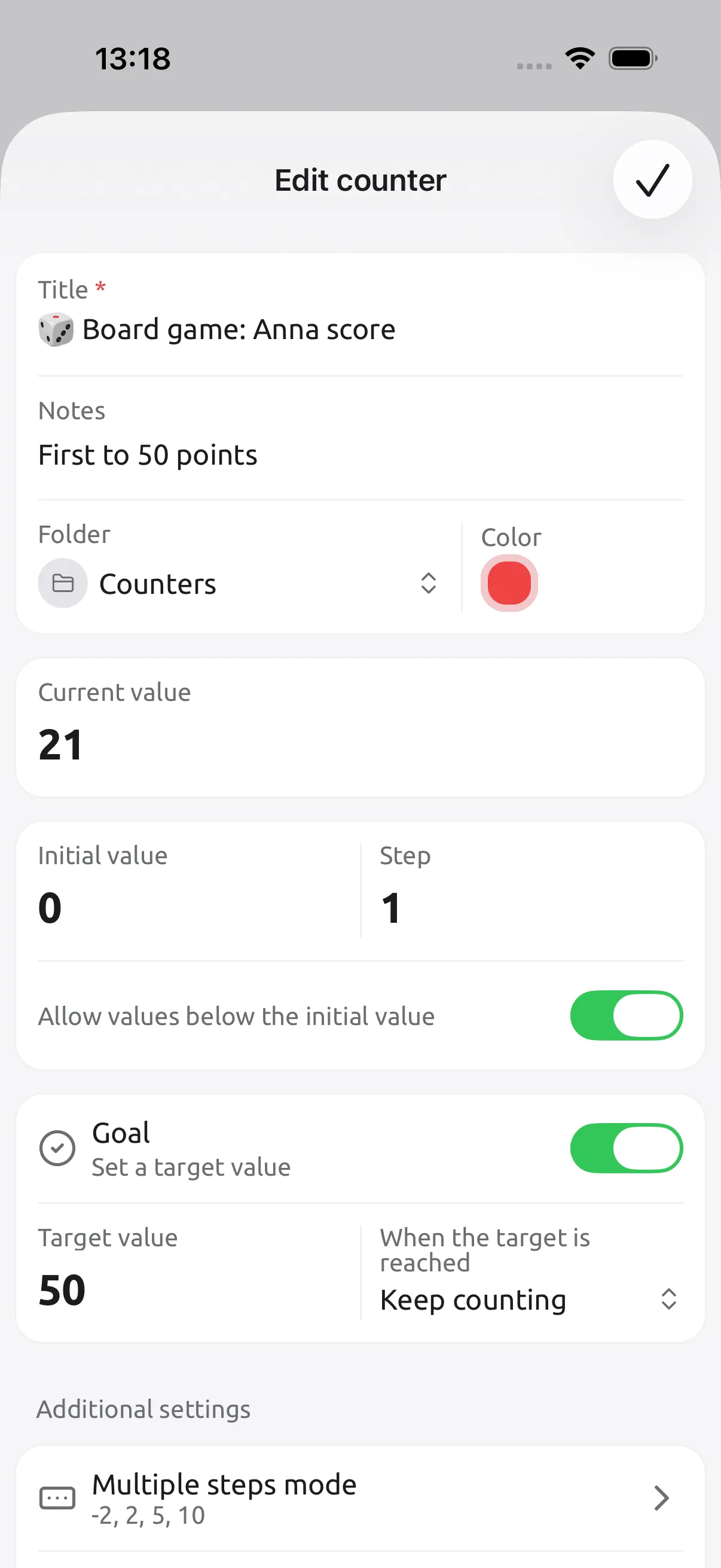
The app’s edit screen has the title, notes, initial value, step and goal settings. This existing screenshot uses a score counter; use the knitting names and values above for your project:
Track a four-row repeat separately
Suppose a section has 24 rows, made of six four-row repeats. Start both counters at zero, with step 1:
| Counter | When to add one | After 19 completed rows |
|---|---|---|
| Sleeve · rows completed | After every row | 19 |
| Sleeve · repeats completed | After rows 4, 8, 12, 16, 20 and 24 | 4 |
You have finished four repeats and three rows of the fifth. Next is overall row 20: row 4 of the repeat. After finishing it, update the row counter to 20 and the repeat counter to 5. These are two manual updates; the counters are not linked.
Do not use the folder sum as a row total: 19 rows + 4 repeats combines different units. Keep step 1 unless you deliberately record pairs; step 2 needs one tap after both rows are complete, not after each row.
Pause and correct without guessing
If you stop halfway through row 20, leave the counter at 19 and update the counter note: Row 20 partly worked; next stitch after the marker. Mark the position in your knitting or pattern too. Lock the counter in the app when you put the phone away; return to that counter screen to unlock and continue.
With step 1, subtract one straight away for an extra tap. If you forgot a tap, check the fabric against your last marker or pattern checkpoint before changing the number. History shows recorded changes; it cannot prove that a row was knitted. If you unravel rows, reduce the completed count and check the repeat count too.
For quicker access, try a home-screen widget with a test counter first. The Android counter-app guide covers widgets and volume buttons; on Android, button counting needs the counter screen active and the phone awake.
When a specialist knitting app helps
Named counters suit a pattern you already follow on paper or elsewhere. If you want a pattern PDF, chart highlighting or automatic linked repeats in the same tool, compare specialist knitting apps. knitCompanion’s smart-counter guide describes its repeat controls. Choose the workflow that fits the pattern you are making.
For counting from your wrist, see how to use a tally counter on Apple Watch.
Common questions
Do I count a row before or after knitting it? In this setup, after completing it. Zero means no rows complete; 19 means row 20 is next. Follow the pattern’s numbering and note any setup rows separately.
Can I use the same setup for crochet or rounds? Yes. Name the counter for completed rows or rounds and add one after each is finished. Follow the pattern’s rule for turning chains and joins; they do not need a separate tap unless the pattern calls for it.
Will the app update pattern repeats automatically? This setup uses independent counters. Update the row total after each row and the repeat total after a full repeat. Neither advances the other automatically.
Do I need Premium to count knitting rows? No. Named counters, folders, custom steps, goals and history are free, and counting works offline. Premium adds options such as reminders and history notes; the ordinary counter note used here is free.
Try it on one piece
Create one counter, record its meaning in the note, and check it against your knitting after a few rows. Add a repeat counter only if the pattern needs one.
Knitting is one of fifteen things worth counting. Get Tally Counter for iPhone, iPad, Apple Watch and Android, or see the features.