How to use a tasbeeh counter on your phone.
Set up a tasbeeh counter on iPhone or Android. Choose a target, count with vibration, correct extra taps and resume after a pause.
To use a tasbeeh counter on your phone, create a counter for the phrase you are reciting, start at zero, set the step to 1 and tap once after each completed repetition. Choose a target from the practice you already follow. The number then means completed repetitions, so 18 means you have recorded 18 and the next will be 19.
A tasbeeh counter, also spelled tasbih counter, keeps the number while you focus on your dhikr. Fingers, beads or a handheld clicker may already suit you. A phone is useful when you want several named counts and a saved place to return to after an interruption.
This guide uses Tally Counter, the app behind this blog. You enter the names and targets yourself; it records your taps rather than listening to or detecting recitations.
Set up one counter for one phrase
Create a folder called Dhikr and add your first counter. Name it after the phrase you use, so you can recognise it when you return. Use these settings for a new session:
| Setting | Example | What it means |
|---|---|---|
| Initial value | 0 | Reset returns to zero |
| Current value | 0 | No repetitions recorded yet |
| Step | 1 | One tap records one repetition |
| Goal | 33 | An illustrative target; choose your own |
| On reaching the goal | Stop counting | Keep the finished number visible |
Turn off allow values below the initial value so an extra subtraction cannot take the count below zero. If you already started counting elsewhere, edit the current value to your known count; keep the initial value at zero for future resets.
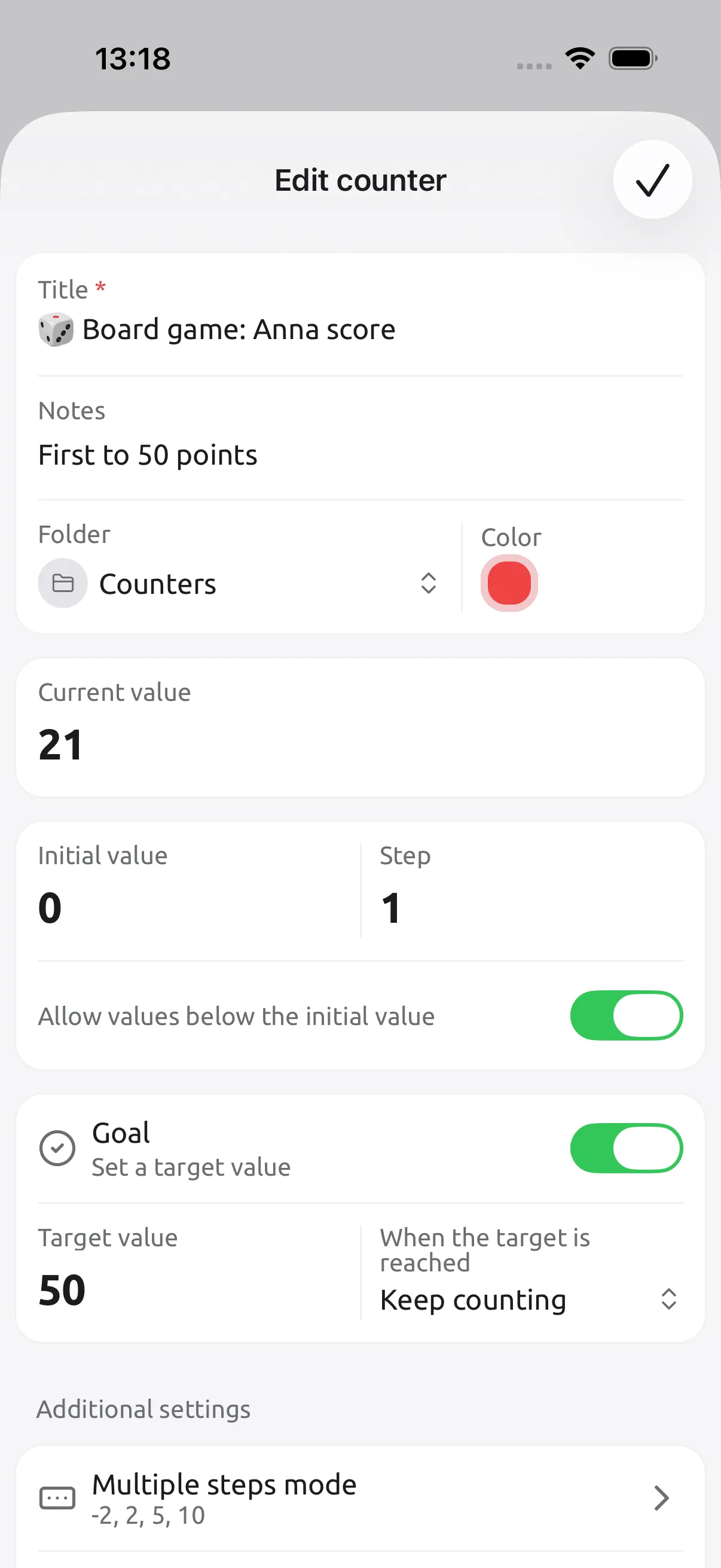
The existing app screenshot below shows where the title, current value, initial value, step and goal controls sit. It uses a board-game score example; enter the settings from the table for your dhikr counter.
Choose what happens at the target
For a first setup, stop counting keeps the target visible and prevents further additions. With the example goal of 33, a count of 32 means one remains. Your next tap brings it to 33. Another tap adds nothing; subtracting one is still available if the tap that reached 33 was a mistake.
The other two goal options do different jobs:
- Reset: the tap that reaches 33 returns the displayed count to the initial value, zero in this example. It is ready for another cycle, but zero alone does not tell you how many cycles you completed.
- Keep counting: the number continues beyond the goal. Use this when you want a running total rather than a separate count for each cycle.
Test the goal behavior with a temporary counter before using it for a session. Automatic reset needs particular care: subtracting one from zero does not restore the previous cycle. If a mistaken tap triggers a reset, check the history, then edit the current value to the count you know is correct. Stop at target is easier when you want to check a finished count before resetting it yourself.
Count quietly and keep phrases separate
Turn vibration on if you want feedback for a tap, and turn sound off if you prefer quiet counting. Try a few taps to check that you can feel the feedback on your device. Tap after each completed repetition, at the same point every time.
For another phrase, create another named counter in the same folder. Each has its own goal and value. Switch between them manually: reaching one counter’s target does not open the next counter. A folder total adds the values currently displayed; it is not a separate record of completed rounds, especially if counters reset.
Volume-button control offers another way to tap. On both iPhone and Android, it requires the counter screen to be active, the app in the foreground and the phone awake. Volume up adds; volume down subtracts. Close the settings sheet and unlock the counter first. A dark theme is a display choice; it does not enable counting with the phone locked. The Android counter-app guide explains the controls, and the iPhone built-in-counter guide covers alternatives.
Pause and correct a count
If you stop at 18, leave the counter at 18. Resume with repetition 19 and add one after completing it. Reset is for starting a new count, not for putting the phone down.
With step 1, subtract one immediately for an extra tap before the target. If you missed a tap, add one only when you know the repetition was completed. History shows recorded app actions; it cannot establish how many unrecorded repetitions you said.
You can lock the counter screen when pausing and unlock it there before continuing. Do not rely on that lock to disable home-screen widget actions. Counters and history are saved on the device; back up before changing phones or deleting the app.
Common questions
Can I use an ordinary tally counter for tasbeeh? Yes. Give each phrase a named counter, start at zero, use step 1 and choose your own target. This setup records one completed repetition per tap and uses manual switching between phrases.
Does counting work offline, and do I need Premium? Counting works offline. Named counters, folders, custom steps, goals and ordinary history are free. Premium adds features such as reminders and history notes; you do not need them for this setup.
What happens when I reach the target? Choose stop to keep the target visible, reset to return to the initial value, or keep counting to continue above it. Reset does not create a separate round counter or switch phrases automatically.
Can I count with my phone locked? The volume-button feature described here requires the counter screen active and the phone awake on iPhone and Android. Locking the phone stops that input. Test any other device-specific option before relying on it.
Start with one saved count
Create one counter, choose its target and try the stop behavior. Add another phrase only when you need a second count.
Dhikr is one of fifteen uses for a tally counter. Get Tally Counter for iPhone and Android, or see the features.